
How to bring a photo to life
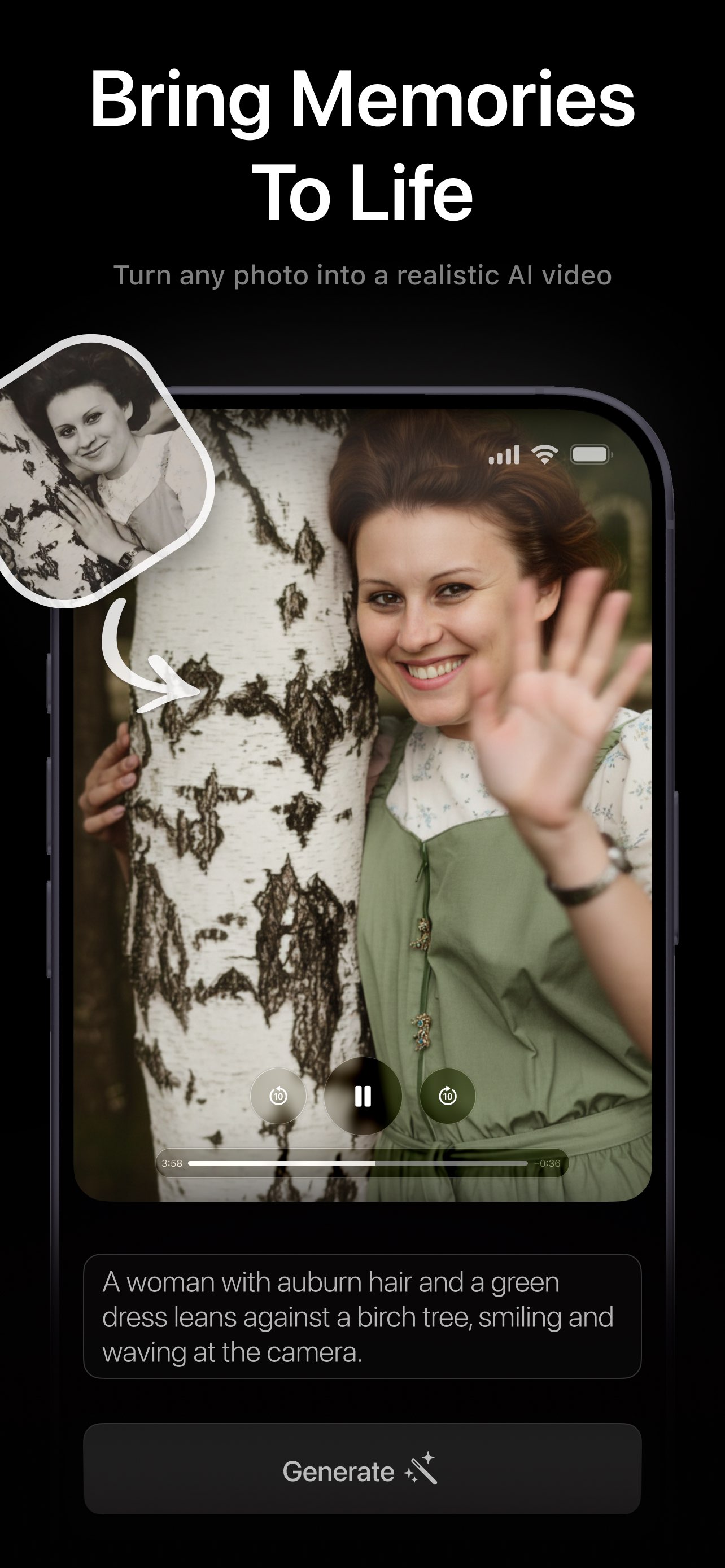
PicAlive reduces a sophisticated AI process to a single tap. Here's exactly what happens from the moment you pick a photo to the finished, living video — and why you never have to write a prompt or touch a setting.
One tap. No prompts, no skills.
Most AI tools ask you to describe what you want, pick a style, and tweak settings before you see anything. PicAlive flips that around. You provide a photo — that's the entire input. The animation instructions are written automatically on the server, so from your side the experience is fully hands-off.
- No prompt to write and no style to choose
- Photos are optimized to Full HD before upload
- The result is a standard, shareable video
- Every generation is saved to your history
Four steps, every time
The same simple rhythm powers every animation you make in PicAlive.
- 01
Choose a photo
Open the picker and pick any image from your library — an old family portrait, a selfie, your pet, a landscape. PicAlive optimizes it automatically.
- 02
Tap Make Alive
One tap uploads your photo. You never write a prompt or choose a style — PicAlive figures out the right, natural motion on its own.
- 03
Watch the queue
A live progress ring shows whether it's processing or waiting in line, counting down the minutes so you always know what's happening.
- 04
Save & share
Your video plays on a loop the instant it's ready. Save it to Photos or share it anywhere — the moment is now a clip you can keep.
What comes alive in your photo
PicAlive aims for natural, believable motion across the whole image — not a single cartoonish effect.
Faces
Smiles, blinks, and subtle expressions
Hair
Gentle sway and natural movement
Water
Rippling, flowing, and reflections
Foliage
Leaves and branches drifting in a breeze
Skies
Clouds and light shifting overhead
Depth
A believable sense of a living scene
How to pick the best photo
PicAlive does the creative work — your photo just needs to give it a clear starting point. A few simple habits go a long way.
See what to animate- Choose a clear photo where the main subject is easy to see.
- Good, even lighting gives the most natural-looking motion.
- Photos with a face, a pet, or moving elements like water shine.
- Higher-resolution images give the AI more detail to work with.
- Scanned or screenshotted old photos work great — give them a try.
- If a result isn't quite right, just make it alive again for a fresh take.
Save, share, and revisit
Once your video is generated, everything you need is one tap away.
One-tap Make Alive
Pick any photo and tap once. There's nothing to configure — PicAlive writes the animation for you on the server and sends back a finished clip.
Lifelike, realistic motion
The AI animates faces, hair, water, foliage, and background depth so the moment moves the way it would have if you'd filmed it.
Live queue & progress
A progress ring shows “Processing” or your place in line with a friendly countdown, refreshed every few seconds while you wait.
Save & share instantly
Download the finished video to your Photos library or hand it to the native iOS share sheet — Messages, Instagram, and more.
Your history, kept safe
Every generation lands in your library. Replay a favorite, re-animate the same photo, or delete a clip whenever you want.
No account, ever
No login, email, or password. An anonymous device identity gets you creating in seconds and keeps the whole experience frictionless.
How it works — common questions
How does PicAlive animate my photo?
How long does it take?
What kinds of photos work best?
What happens to the finished video?
Can I reuse a photo or make another version?
Try it on your own photo
Download PicAlive free and watch your first still photo come alive in seconds.
Rated 4.8 by 2M+ happy users